
Bringing your iPhone or iPad app to Apple Vision Pro: compatible or native?
Most iPhone and iPad apps already run on Apple Vision Pro. Here is what changes, what doesn’t work, and when it is worth going further with a native visionOS version.
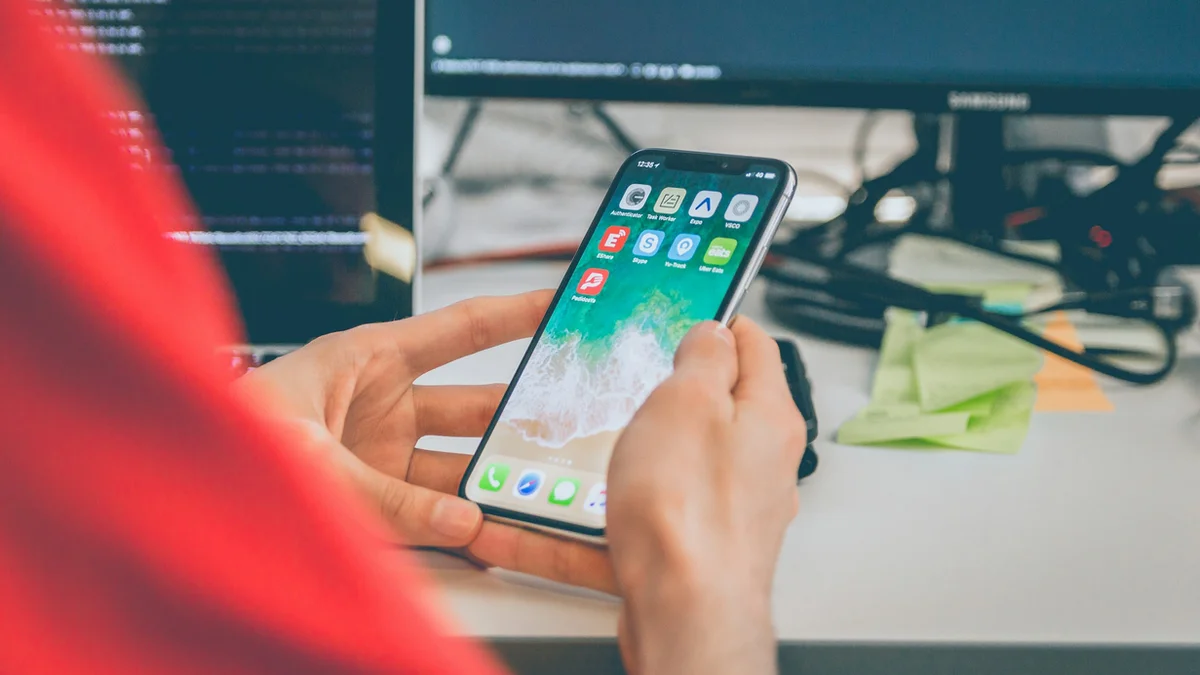
If you already have an iPhone or iPad app, you may be closer to Apple Vision Pro than you think: Apple says most apps can run with minimal code changes. The real question is how far to go — stay a compatible app, adopt the visionOS appearance, or rethink the experience for space. This article is part of our complete guide to building an Apple Vision Pro app.
Three levels of ambition
- Compatible app. Your app, built with the iOS SDK, runs in visionOS without a visionOS destination.
- visionOS destination. You add visionOS as a destination in Xcode and rebuild with the visionOS SDK: your app gets the standard visionOS appearance and can use platform features.
- Spatial redesign. You add volumes and immersive spaces with RealityKit, so people step into your content instead of looking at it.
What a compatible app looks like
visionOS runs a compatible app in an environment that matches an iPad as closely as possible: windows and views keep their iPadOS or iOS appearance, and the system sizes the window like an iPad whenever it can. If your app supports iPad, Apple Vision Pro prefers that version in landscape; an iPhone‑only app appears with iPhone proportions, in portrait. Background apps stay visible in the room, dimmed when no one looks at them.
What doesn’t work in a compatible app
Some features are unavailable on Apple Vision Pro, because of hardware differences or the way people use the device:
- Core Motion services, barometer and magnetometer data
- Location services other than the standard service
- HealthKit data
- Photo and video capture, and camera features such as autofocus or flash
- Background execution for location, external accessories or Bluetooth peripherals
Apple’s advice is to degrade gracefully: check availability, remove what can’t work, and offer an alternative — for example, let people add images from their library when the camera isn’t available. Don’t assume the device is an iPhone or iPad, don’t make layout decisions from UIScreen values, and don’t rely on the status bar.
Making it available on the App Store
Compatible apps are offered on the App Store for Apple Vision Pro using the metadata you already provided, and you control that availability in App Store Connect, from your app’s pricing and availability settings. In‑app purchases, subscriptions, entitlements, on‑demand resources and app thinning keep working.
When to go further
Our view: stay compatible when your app is mostly reading, forms or lists and you want a presence on the platform at low cost. Add a visionOS destination when people use your app for long sessions — the native appearance, hover effects and window behaviour make a real difference to comfort. Rethink the experience when space adds meaning: visiting a place, seeing a product at life size, rehearsing a procedure, watching immersive video. Immersive Street View, for example, pairs a spatial experience on Apple Vision Pro with companion apps on iPhone, iPad, Mac and Apple Watch, synced with iCloud.
A step‑by‑step migration plan
- Test as it is. Run the Designed for iPad destination that Xcode adds for iOS apps, and if your app is on the App Store, download it on Apple Vision Pro.
- Fix the blockers. Add availability checks around unavailable features and replace deprecated APIs.
- Audit the interface. Use adaptive layouts, declare the orientations you support, prefer vector images and check hover effects on custom controls.
- Add the visionOS destination once the compatible version proves demand or long sessions.
- Prototype one spatial moment — a volume or an immersive space — and test it on the device before committing.
- Ship and measure with TestFlight, then the App Store. Our publishing checklist covers the last mile.
Frequently asked questions
Do iPhone apps work on Apple Vision Pro?
Most do. Compatible iPhone and iPad apps run in a window in visionOS, and Apple Vision Pro prefers the iPad version in landscape when one exists.
Which features don’t work in compatible apps on Apple Vision Pro?
Core Motion, barometer and magnetometer data, location services other than the standard service, HealthKit data, and photo or video capture are unavailable to compatible apps.
How do I make my iPad app available on Apple Vision Pro?
Compatible apps are offered on the App Store for Apple Vision Pro using your existing metadata, and you can change that availability at any time in App Store Connect.
Should I build a native visionOS version of my app?
If people use your app for long sessions, or if space adds meaning to your content, a visionOS destination or a spatial redesign is worth considering.
Sources
- Apple Developer Documentation — Making your existing app compatible with visionOS
- Apple Developer — Run your iPad and iPhone apps in the Shared Space (WWDC23)
- Apple Developer — Submit your apps to the App Store for Apple Vision Pro
- Apple Developer — Build next-generation experiences with visionOS 27 (WWDC26, session 287)
- Apple Developer Documentation — visionOS