Widgets on Apple Vision Pro: a permanent place for your app in the room
Pinned to a wall, still there tomorrow, simpler when you step back: widgets turn an app into an object in someone’s home. How they work on Apple Vision Pro — and how to use them well.
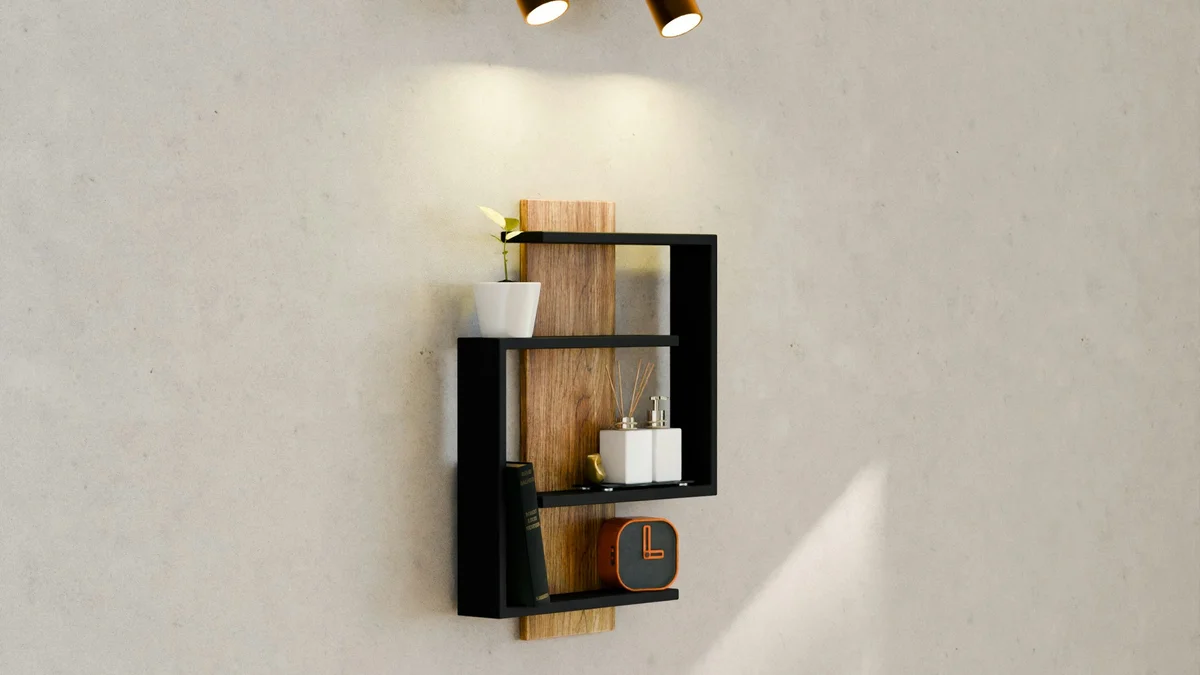
On iPhone, a widget lives on a Home Screen. On Apple Vision Pro, since visionOS 26, it lives in your home: on the wall next to the window, on the desk, on a shelf. It stays where you put it, and it is there again every time you put Apple Vision Pro on. For an app, few places are more valuable — and few are easier to get wrong.
How widgets work on Apple Vision Pro
People add widgets from the Widgets app and pin them to horizontal or vertical surfaces in a room. Apple frames their design around a few principles:
- Persistence. A widget stays anchored where it was placed, across sessions — even when the person moves from room to room or turns Apple Vision Pro off and on again.
- Real‑world size. Widgets have a fixed, consistent scale, so they look well proportioned on a wall, a desk or a shelf.
- Customisation. People can adjust a widget’s frame width, colour and depth.
- Proximity awareness. Like a physical object, a widget looks smaller from across the room, so its layout can adapt to the distance.
Under the surface, they work like widgets on other Apple platforms: they can be interactive and animated, use networking and location, and update through timelines or WidgetKit push notifications. Apple’s own include Clock, Weather, Music and Photos.
Building a widget for visionOS
Widgets are built with WidgetKit and SwiftUI, by one of two routes:
- From an iPhone or iPad app. If your app already offers widgets and runs on Apple Vision Pro as a compatible app, those widgets automatically adopt the spatial and visual treatment of visionOS.
- From a visionOS app. Add a Widget Extension target in Xcode. Step Into Vision’s getting‑started tutorial walks through the set‑up and shows how to find and test your widget in the Widgets app of the visionOS Simulator.
Four decisions then shape how your widget feels in a room:
- Size. visionOS supports the system sizes from small to extra large. A visionOS app offers its extra‑large widget in portrait with
systemExtraLargePortrait; a compatible iPhone or iPad app usessystemExtraLarge, which also appears in portrait. - Mounting style. By default, a widget sits on a surface with an elevated look — the only look available on a table or a desk. On a wall it can also appear recessed, set into the surface like a window. Limit the styles with
supportedMountingStyles; a widget that only supports the recessed style can’t be placed on horizontal surfaces. - Texture. Widgets of a visionOS app can keep the default glass texture or switch to paper, for a printed, poster‑like look, with
widgetTexture. - Level of detail. The
levelOfDetailenvironment value tells the widget whether the person is close (default) or further away (simplified). Show fewer, larger elements in the simplified layout; the system animates the change between the two.
struct ShowtimesWidget: Widget {
    var body: some WidgetConfiguration {
        StaticConfiguration(kind: "Showtimes", provider: ShowtimesProvider()) { entry in
            ShowtimesView(entry: entry)
        }
        .supportedFamilies([.systemSmall, .systemExtraLargePortrait])
        .supportedMountingStyles([.elevated, .recessed])
        .widgetTexture(.paper)
    }
}

struct ShowtimesView: View {
    @Environment(\.levelOfDetail) private var detail
    let entry: ShowtimesEntry

    var body: some View {
        Text(entry.nextShow)
            .font(detail == .simplified ? .largeTitle : .title2)
    }
}
Widgets also follow the colour themes people choose: besides full colour, they can appear in an accented rendering mode, where the background gives way to a solid colour that matches the theme. Design and test both.
Ideas for brands and apps (our take)
This section is Beforz commentary. A widget in someone’s living room is a privilege, not a billboard. The ones that stay answer a question people ask every day, at a glance, from wherever they stand. A few directions we like:
- A window onto a place. A recessed widget with a daily photograph of a destination, a hotel or a property — the kind of view people come to Immersive Street View for.
- A countdown. Days until a launch, a match or an event, reduced to one big number from across the room.
- A status that matters. A delivery, a booking, a score — updated by a push notification when it changes, not on a timer.
- A poster. Paper texture, extra‑large portrait: an artwork of the day, a film of the week, a collection. Decor first, information second.
Design the simplified layout first: it is the one people will see most of the day. Then test on Apple Vision Pro, on a real wall, from the other side of the room. If you already have an iPhone or iPad app with widgets, start there — they appear on Apple Vision Pro as soon as the app runs on it. Our guide to bringing an iPhone or iPad app to Apple Vision Pro covers that first step, our spatial UX principles the design, and we can help with the native version.
Frequently asked questions
Can you put widgets on the wall with Apple Vision Pro?
Yes. Since visionOS 26, you add widgets from the Widgets app and pin them to walls and other vertical surfaces, or to tables and desks. They stay where you put them and reappear every time you wear Apple Vision Pro.
Do iPhone and iPad widgets work on Apple Vision Pro?
Yes. When an iPhone or iPad app runs on Apple Vision Pro as a compatible app, its widgets automatically adopt the spatial treatment of visionOS. Some options, such as the paper texture, are reserved for widgets of visionOS apps.
What does levelOfDetail do in a visionOS widget?
It tells the widget how close the person is. Near the widget, the value is default; further away, it is simplified, so the widget can switch to fewer, larger elements that stay legible across the room.
Which widget sizes does visionOS support?
The system sizes from small to extra large. visionOS apps offer an extra‑large widget in portrait with systemExtraLargePortrait; compatible iPhone and iPad apps use systemExtraLarge, which also appears in portrait.
Sources
- Apple Developer Documentation — Updating your widgets for visionOS
- Apple Developer — Design widgets for visionOS (WWDC25, session 255)
- Apple Newsroom — visionOS 26 introduces powerful new spatial experiences for Apple Vision Pro (9 June 2025)
- Apple Human Interface Guidelines — Widgets
- Step Into Vision — Widgets: Getting started with visionOS Widgets